

Add and Configure the Node
- On the canvas, click Add Node > Tools, then select an action from an available tool.
-
Optional: If a tool requires authentication, select an existing credential or create a new one.
To change the default credential, go to Tools or Plugins.
- Complete any other required tool settings.
Prepare Inputs for Tools
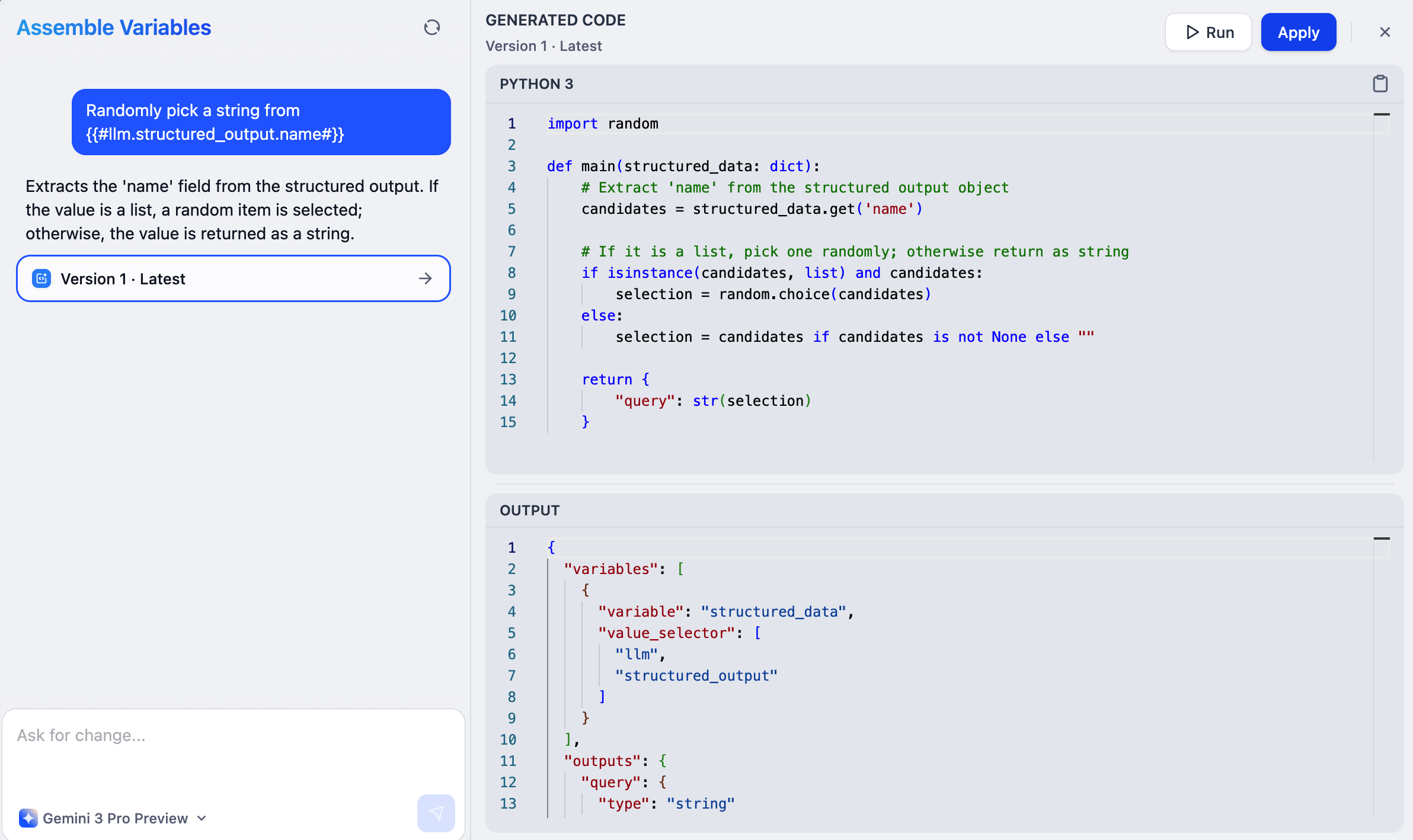
Tools may require inputs in specific formats that don’t exactly match your upstream node outputs. You might need to reformat data, extract specific information, or combine outputs from multiple nodes. Instead of manually adding intermediate nodes or modifying upstream outputs, you can prepare inputs right where you need them. Two approaches are available:Assemble Variables
Example: Combine Outputs from Multiple Nodes
Example: Combine Outputs from Multiple Nodes
Three upstream LLM nodes each generate a product description. The downstream tool expects a single array containing all descriptions.Select Assemble variables and describe: “Combine the text outputs from LLM1, LLM2, and LLM3.”The system generates code that merges the outputs in the array format the tool expects.
Before assembling variables, run the relevant upstream nodes to make their output data available.
-
In any tool input field that accepts variables, type
/and select Assemble variables from the dropdown. - Describe what you need in natural language, and AI generates the code to transform the data. The generated code automatically adapts to the input field’s expected format.
- Click Run to test the code. This opens the internal Code node and runs it with available upstream data.
-
Check the Code node’s output to verify that it matches your expectations:
- If it looks good, simply exit. The code is saved and applied automatically.
- If not, click the code generator icon in the code field to continue refining with AI, or edit the code directly.
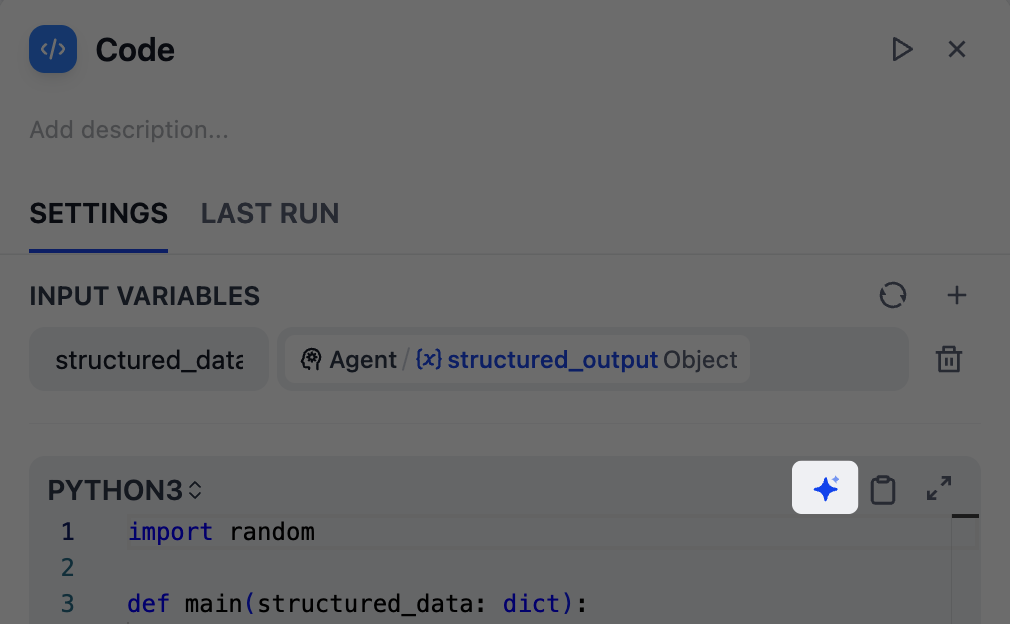
Code Generator Icon
To reopen the Assemble Variable interface later:
- Click View Internals next to the assembled variable.
- Select the internal Code node.
- Click the code generator icon.
Extract from LLM’s Chat History
context output variable.
Example: Extract Code from Mixed Output
Example: Extract Code from Mixed Output
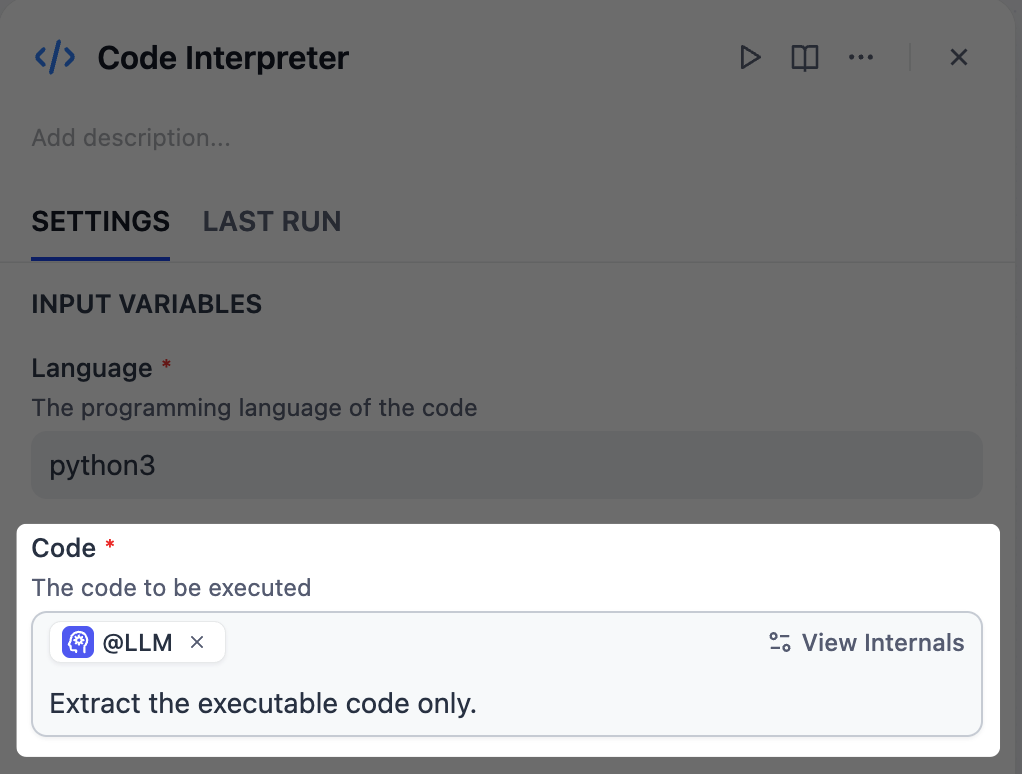
An upstream LLM node generates code but its output includes explanations and comments in natural language. The downstream Code Interpreter tool needs pure, executable code.Instead of modifying the upstream LLM to output only code, type
/ in the Code Interpreter’s input field and select that LLM node. Then describe: “Extract the executable code only.”The system creates an internal LLM node that reads the chat history of the selected LLM node and extracts just the code portion in the format the Code Interpreter expects.Before extracting from chat history, run the relevant upstream Agent or LLM node to make its
context data available.-
In any input field that accepts variables, type
/and select an upstream Agent or LLM node. - Describe what you want to extract from its chat history.
- Click View Internals and test-run the internal LLM node. The node automatically imports the upstream node’s chat history and uses structured output to match the required format.
- Check the output and refine as needed.