> ## Documentation Index
> Fetch the complete documentation index at: https://dify-6c0370d8-add-new-agent.mintlify.site/llms.txt
> Use this file to discover all available pages before exploring further.
# Tool
> Connect to external services and APIs
Add [Dify tools](/en/use-dify/workspace/tools) to your workflows as standalone nodes.
This lets your workflows interact with external services and APIs to access real-time data and perform actions, like web searches, database queries, or content processing.
## Add and Configure the Node
1. On the canvas, click **Add Node** > **Tools**, then select an action from an available tool.
2. Optional: If a tool requires authentication, select an existing credential or create a new one.
To change the default credential, go to **Tools** or **Plugins**.
3. Complete any other required tool settings.
## Prepare Inputs for Tools
Tools may require inputs in specific formats that don't exactly match your upstream node outputs. You might need to reformat data, extract specific information, or combine outputs from multiple nodes.
Instead of manually adding intermediate nodes or modifying upstream outputs, you can prepare inputs **right where you need them**.
Two approaches are available:
| Approach | Best for | How It Works |
| :------------------------------------------------------------------------------------------------------------------------------------------------------------------------------------------------- | :-------------------------------------------------------------------------------------- | :--------------------------------------------------------------------------------------------------------------------------------------------------------- |
| **Assemble Variables** | Data is available in upstream outputs but needs reformatting, extracting, or combining. | - You describe the needs.
- An internal **Code** node is automatically created to handle the transformation.
|
| **Extract from LLM's Chat History** | Data is embedded in an LLM's chat history and needs interpretation. | - You describe the needs.
- An internal **LLM** node is automatically created to read that chat history and extract the needed data.
|
### Assemble Variables
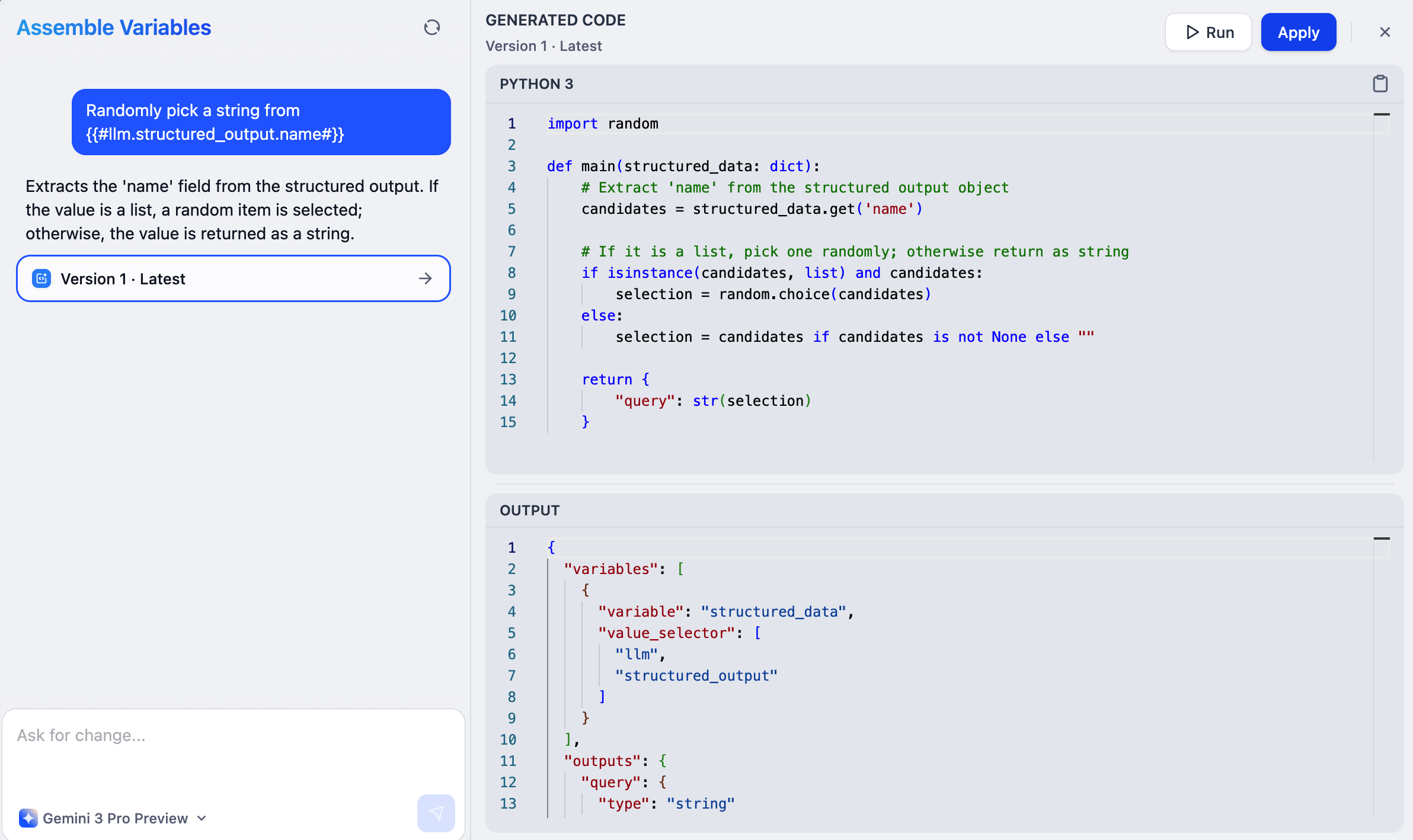 Use this when the data exists in clear, structured upstream outputs but needs transformation—like extracting a substring, combining multiple outputs, or changing data types.
Three upstream LLM nodes each generate a product description. The downstream tool expects a single array containing all descriptions.
Select **Assemble variables** and describe: "Combine the text outputs from LLM1, LLM2, and LLM3."
The system generates code that merges the outputs in the array format the tool expects.
Before assembling variables, run the relevant upstream nodes to make their output data available.
1. In any tool input field that accepts variables, type `/` and select **Assemble variables** from the dropdown.
2. Describe what you need in natural language, and AI generates the code to transform the data. The generated code automatically adapts to the input field's expected format.
3. Click **Run** to test the code. This opens the internal Code node and runs it with available upstream data.
4. Check the Code node's output to verify that it matches your expectations:
* If it looks good, simply exit. The code is saved and applied automatically.
* If not, click the code generator icon in the code field to continue refining with AI, or edit the code directly.
Use this when the data exists in clear, structured upstream outputs but needs transformation—like extracting a substring, combining multiple outputs, or changing data types.
Three upstream LLM nodes each generate a product description. The downstream tool expects a single array containing all descriptions.
Select **Assemble variables** and describe: "Combine the text outputs from LLM1, LLM2, and LLM3."
The system generates code that merges the outputs in the array format the tool expects.
Before assembling variables, run the relevant upstream nodes to make their output data available.
1. In any tool input field that accepts variables, type `/` and select **Assemble variables** from the dropdown.
2. Describe what you need in natural language, and AI generates the code to transform the data. The generated code automatically adapts to the input field's expected format.
3. Click **Run** to test the code. This opens the internal Code node and runs it with available upstream data.
4. Check the Code node's output to verify that it matches your expectations:
* If it looks good, simply exit. The code is saved and applied automatically.
* If not, click the code generator icon in the code field to continue refining with AI, or edit the code directly.
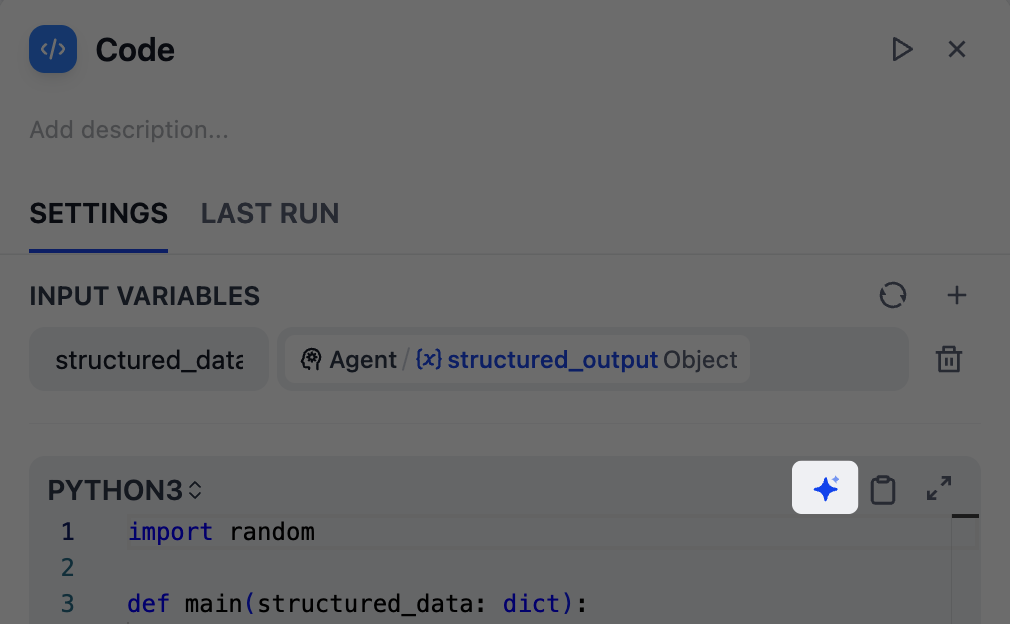 To reopen the **Assemble Variable** interface later:
1. Click **View Internals** next to the assembled variable.
2. Select the internal Code node.
3. Click the code generator icon.
### Extract from LLM's Chat History
To reopen the **Assemble Variable** interface later:
1. Click **View Internals** next to the assembled variable.
2. Select the internal Code node.
3. Click the code generator icon.
### Extract from LLM's Chat History
 Use this when the information you need is embedded in an LLM's chat history—user, assistant, and tool messages generated during execution. You can view an LLM's chat history through its `context` output variable.
An upstream LLM node generates code but its output includes explanations and comments in natural language. The downstream Code Interpreter tool needs pure, executable code.
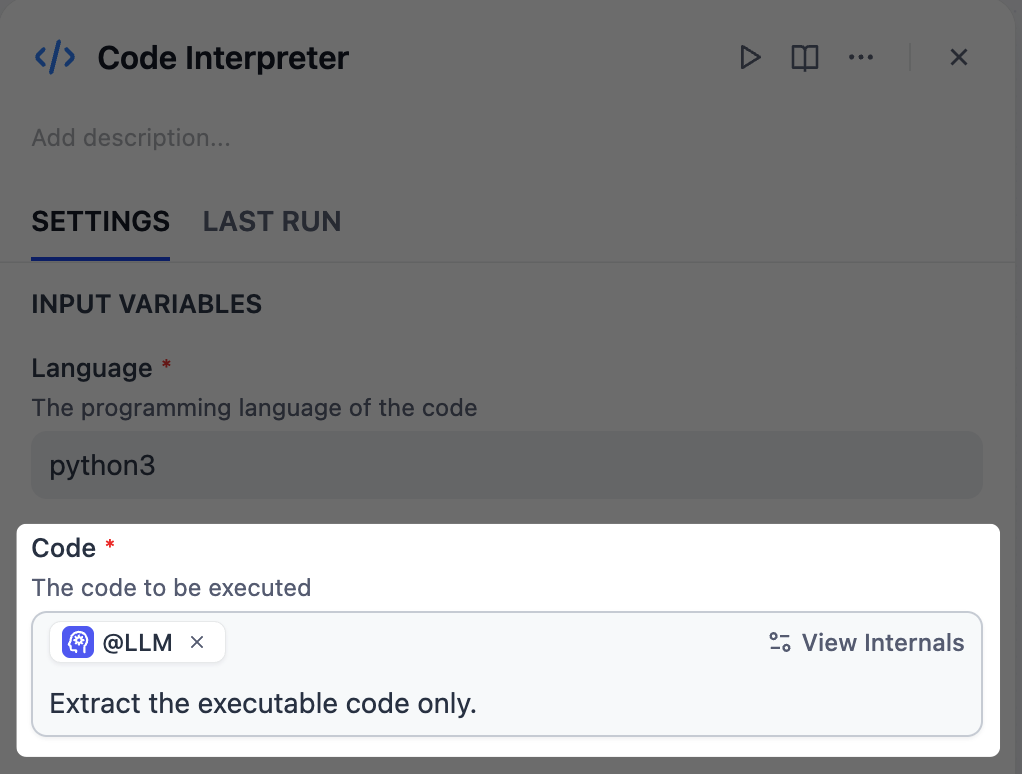
Instead of modifying the upstream LLM to output only code, type `/` in the Code Interpreter's input field and select that LLM node. Then describe: "Extract the executable code only."
The system creates an internal LLM node that reads the chat history of the selected LLM node and extracts just the code portion in the format the Code Interpreter expects.
Before extracting from chat history, run the relevant upstream Agent or LLM node to make its `context` data available.
1. In any input field that accepts variables, type `/` and select an upstream Agent or LLM node.
2. Describe what you want to extract from its chat history.
3. Click **View Internals** and test-run the internal LLM node.
The node automatically imports the upstream node's chat history and uses structured output to match the required format.
4. Check the output and refine as needed.
Use this when the information you need is embedded in an LLM's chat history—user, assistant, and tool messages generated during execution. You can view an LLM's chat history through its `context` output variable.
An upstream LLM node generates code but its output includes explanations and comments in natural language. The downstream Code Interpreter tool needs pure, executable code.
Instead of modifying the upstream LLM to output only code, type `/` in the Code Interpreter's input field and select that LLM node. Then describe: "Extract the executable code only."
The system creates an internal LLM node that reads the chat history of the selected LLM node and extracts just the code portion in the format the Code Interpreter expects.
Before extracting from chat history, run the relevant upstream Agent or LLM node to make its `context` data available.
1. In any input field that accepts variables, type `/` and select an upstream Agent or LLM node.
2. Describe what you want to extract from its chat history.
3. Click **View Internals** and test-run the internal LLM node.
The node automatically imports the upstream node's chat history and uses structured output to match the required format.
4. Check the output and refine as needed.