> ## Documentation Index
> Fetch the complete documentation index at: https://dify-6c0370d8-add-new-agent.mintlify.site/llms.txt
> Use this file to discover all available pages before exploring further.
# Using MCP Tools
Connect external tools from [MCP servers](https://modelcontextprotocol.io/introduction) to your Dify apps. Instead of just built-in tools, you can use tools from the growing [MCP ecosystem](https://mcpservers.org/).
This covers using MCP tools in Dify. To publish Dify apps as MCP servers, see [here](/en/use-dify/publish/publish-mcp).
Only supports MCP servers with [HTTP transport](https://modelcontextprotocol.io/docs/concepts/architecture#transport-layer) right now.
## Adding MCP servers
Go to **Tools** → **MCP** in your workspace.
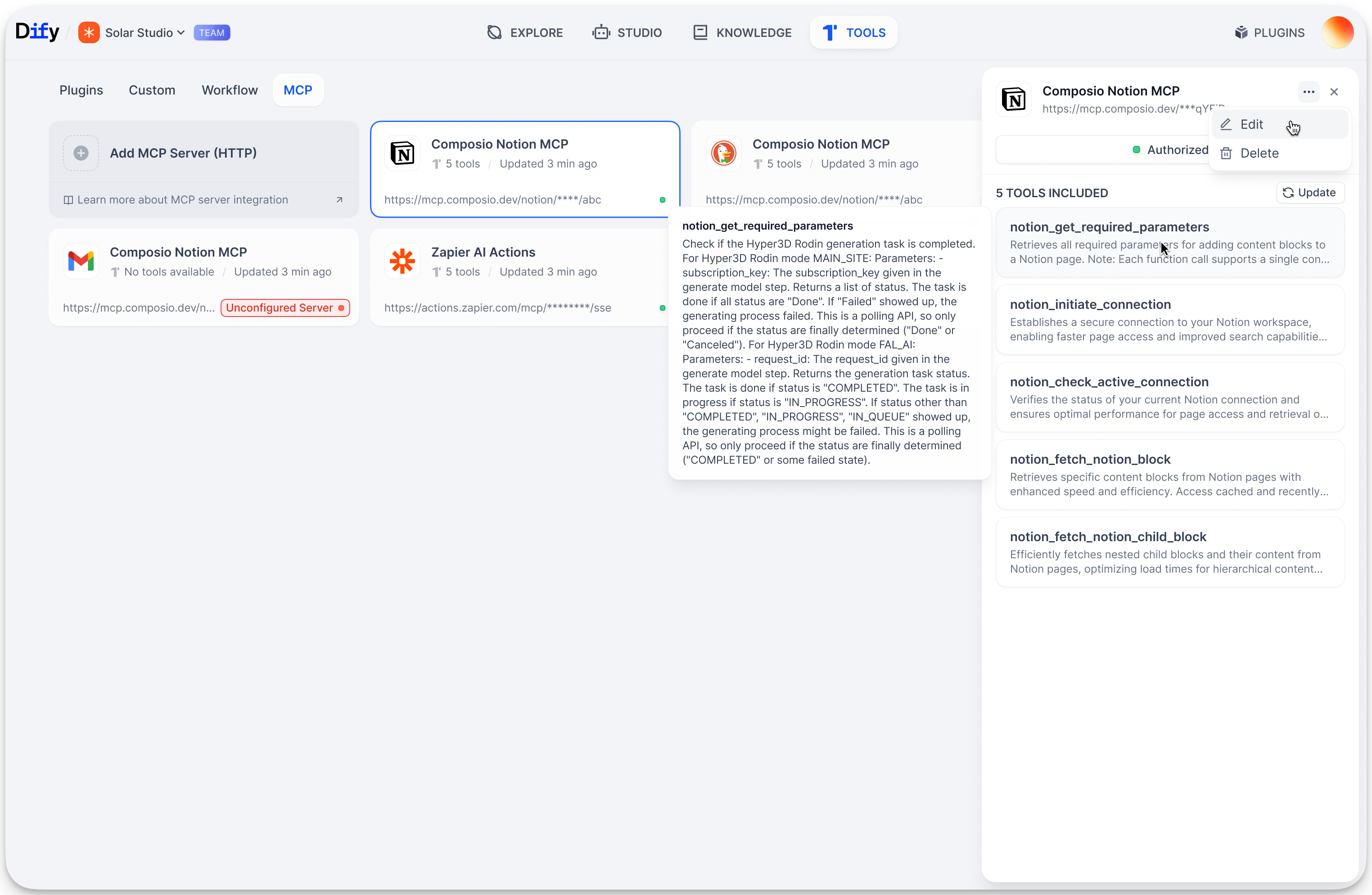 Click **Add MCP Server (HTTP)**:
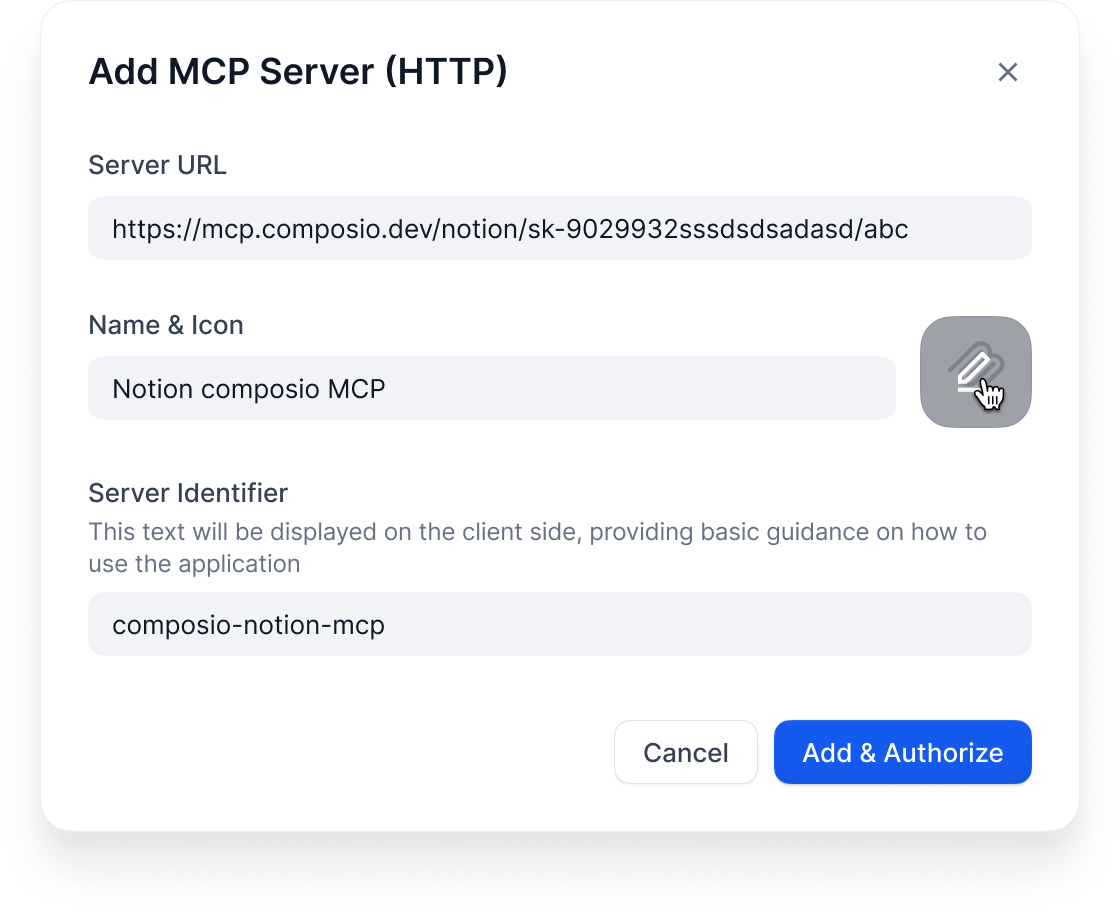 **Server URL**: Where the MCP server lives (like `https://api.notion.com/mcp`)
**Name & Icon**: Call it something useful. Dify tries to grab icons automatically.
**Server ID**: Unique identifier (lowercase, numbers, underscores, hyphens, max 24 chars)
Never change the server ID once you start using it. This will break any apps that use tools from this server.
## What happens next
Dify automatically:
1. Connects to the server
2. Handles any OAuth stuff
3. Gets the list of available tools
4. Makes them available in your app builder
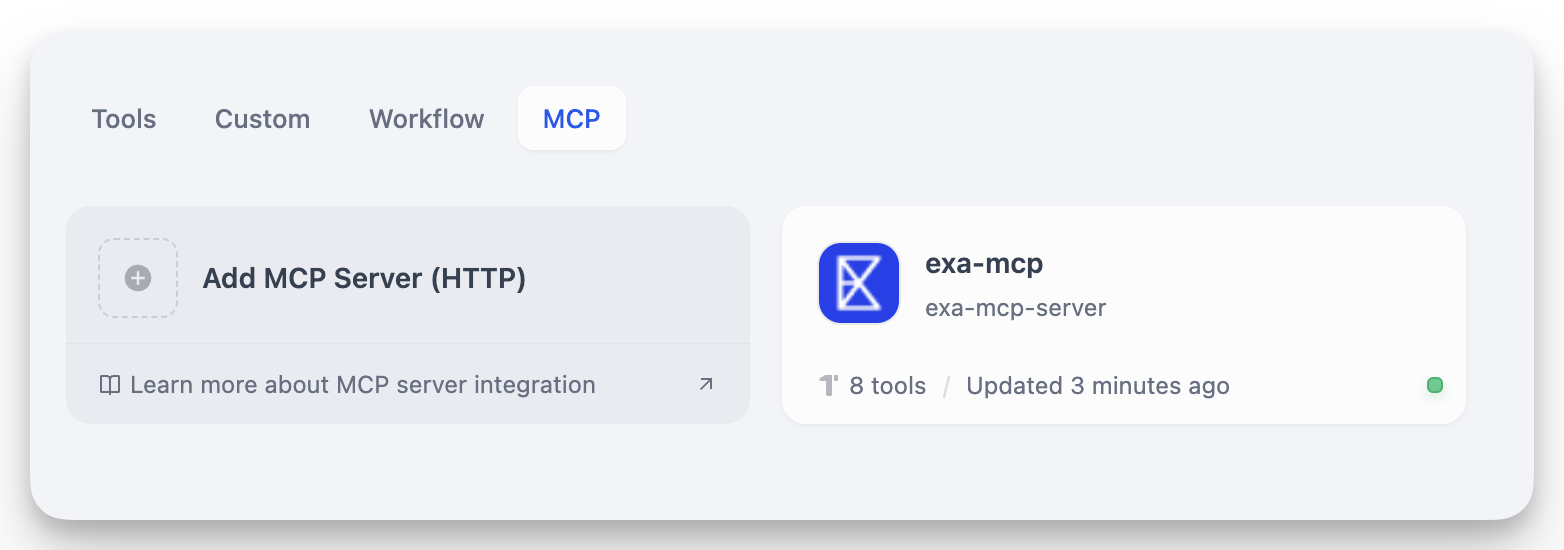
You'll see a server card once it finds tools:
**Server URL**: Where the MCP server lives (like `https://api.notion.com/mcp`)
**Name & Icon**: Call it something useful. Dify tries to grab icons automatically.
**Server ID**: Unique identifier (lowercase, numbers, underscores, hyphens, max 24 chars)
Never change the server ID once you start using it. This will break any apps that use tools from this server.
## What happens next
Dify automatically:
1. Connects to the server
2. Handles any OAuth stuff
3. Gets the list of available tools
4. Makes them available in your app builder
You'll see a server card once it finds tools:
 ## Managing servers
Click any server card to:
**Update Tools**: Refresh when the external service adds new tools
## Managing servers
Click any server card to:
**Update Tools**: Refresh when the external service adds new tools
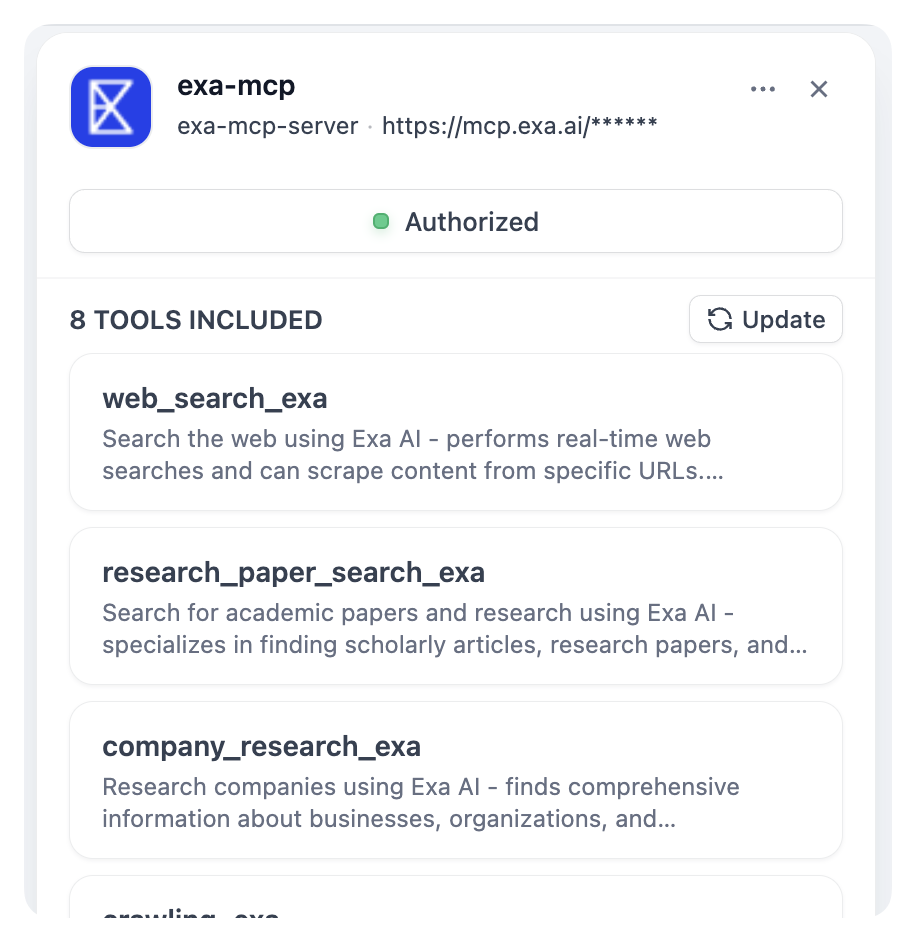 **Re-authorize**: Fix auth when tokens expire
**Edit Settings**: Change server details (but not the ID!)
**Remove**: Disconnect the server (this breaks apps using its tools)
## Using MCP tools
Once connected, MCP tools show up everywhere you'd expect:
**In agents**: Tools appear grouped by server ("Notion MCP » Create Page")
**In workflows**: MCP tools become available as nodes
**In agent nodes**: Same as regular agents
## Customizing tools
When you add an MCP tool, you can customize it:
**Re-authorize**: Fix auth when tokens expire
**Edit Settings**: Change server details (but not the ID!)
**Remove**: Disconnect the server (this breaks apps using its tools)
## Using MCP tools
Once connected, MCP tools show up everywhere you'd expect:
**In agents**: Tools appear grouped by server ("Notion MCP » Create Page")
**In workflows**: MCP tools become available as nodes
**In agent nodes**: Same as regular agents
## Customizing tools
When you add an MCP tool, you can customize it:
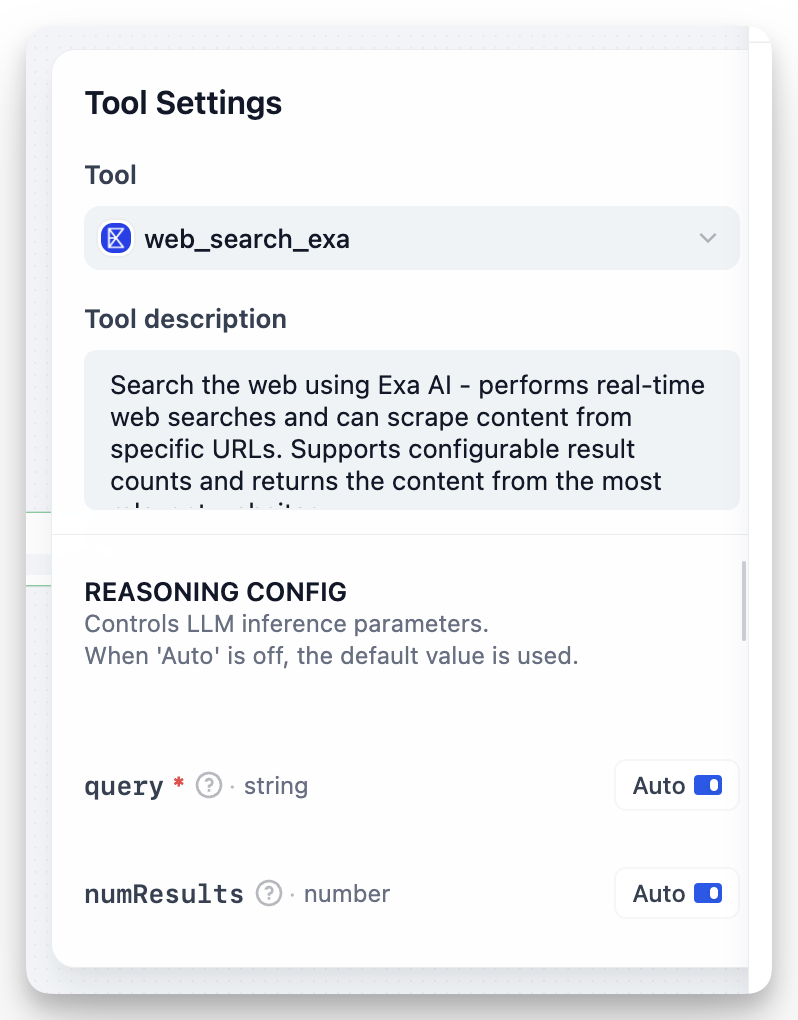 **Description**: Override the default description to be more specific
**Parameters**: For each tool parameter, choose:
* **Auto**: Let the AI decide the value
* **Fixed**: Set a specific value that never changes
**Example**: For a search tool, set `numResults` to 5 (fixed) but keep `query` on auto.
## Sharing apps
When you export apps that use MCP tools:
* The export includes server IDs
* To use the app elsewhere, add the same servers with identical IDs
* Document which MCP servers your app needs
## Troubleshooting
**"Unconfigured Server"**: Check the URL and re-authorize
**Missing tools**: Hit "Update Tools"
**Broken apps**: You probably changed a server ID. Add it back with the original ID.
## Tips
* Use permanent, descriptive server IDs like `github-prod` or `crm-system`
* Keep the same MCP setup across dev/staging/production
* Set fixed values for config stuff, auto for dynamic inputs
* Test MCP integrations before deploying
**Description**: Override the default description to be more specific
**Parameters**: For each tool parameter, choose:
* **Auto**: Let the AI decide the value
* **Fixed**: Set a specific value that never changes
**Example**: For a search tool, set `numResults` to 5 (fixed) but keep `query` on auto.
## Sharing apps
When you export apps that use MCP tools:
* The export includes server IDs
* To use the app elsewhere, add the same servers with identical IDs
* Document which MCP servers your app needs
## Troubleshooting
**"Unconfigured Server"**: Check the URL and re-authorize
**Missing tools**: Hit "Update Tools"
**Broken apps**: You probably changed a server ID. Add it back with the original ID.
## Tips
* Use permanent, descriptive server IDs like `github-prod` or `crm-system`
* Keep the same MCP setup across dev/staging/production
* Set fixed values for config stuff, auto for dynamic inputs
* Test MCP integrations before deploying