> ## Documentation Index
> Fetch the complete documentation index at: https://dify-6c0370d8-add-new-agent.mintlify.site/llms.txt
> Use this file to discover all available pages before exploring further.
# File System
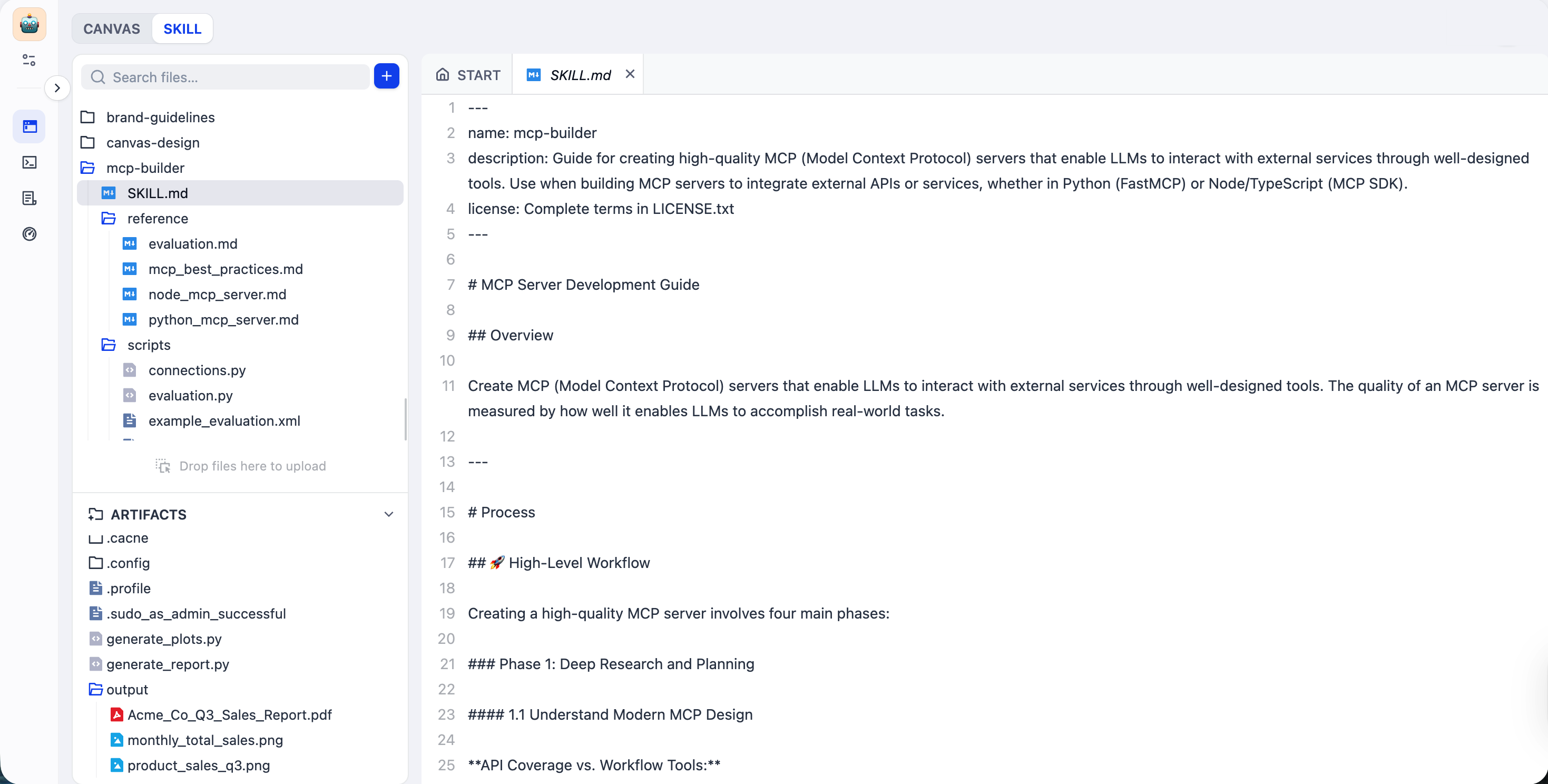
Each application using [sandboxed runtime](/en/use-dify/build/runtime#sandboxed-runtime) has a file system where LLMs can read, write, and process files as needed.
The file system contains two types of files:
* **Resources**: Persistent files you upload or create, such as skills.
* **Artifacts**: Temporary files LLMs generate during each run.
 ## Resources
Resources are files you create or import for your workflows. LLMs can read but cannot modify them. They persist across runs and are included when you export the app.
### Skills
[Skills](https://agentskills.io/home) bundle instructions, knowledge, scripts, and any other references for specialized tasks—define once, reuse across workflows.
For example, instead of repeating style guidelines and uploading brand materials every time you need an LLM to generate marketing copy, create a `marketing-copy` skill with everything included and simply reference it whenever needed.
Think of a skill as a detailed SOP (Standard Operating Procedure) and the LLM as a capable new hire. The new hire has general abilities but doesn't know your company's specific processes. A skill provides everything they need—step-by-step instructions, reference materials, tools to use—so they can complete tasks the way you expect.
#### Create or Import Skills
Import skills you've been using elsewhere, start with our ready-made skill templates, or create custom ones directly in the file system.
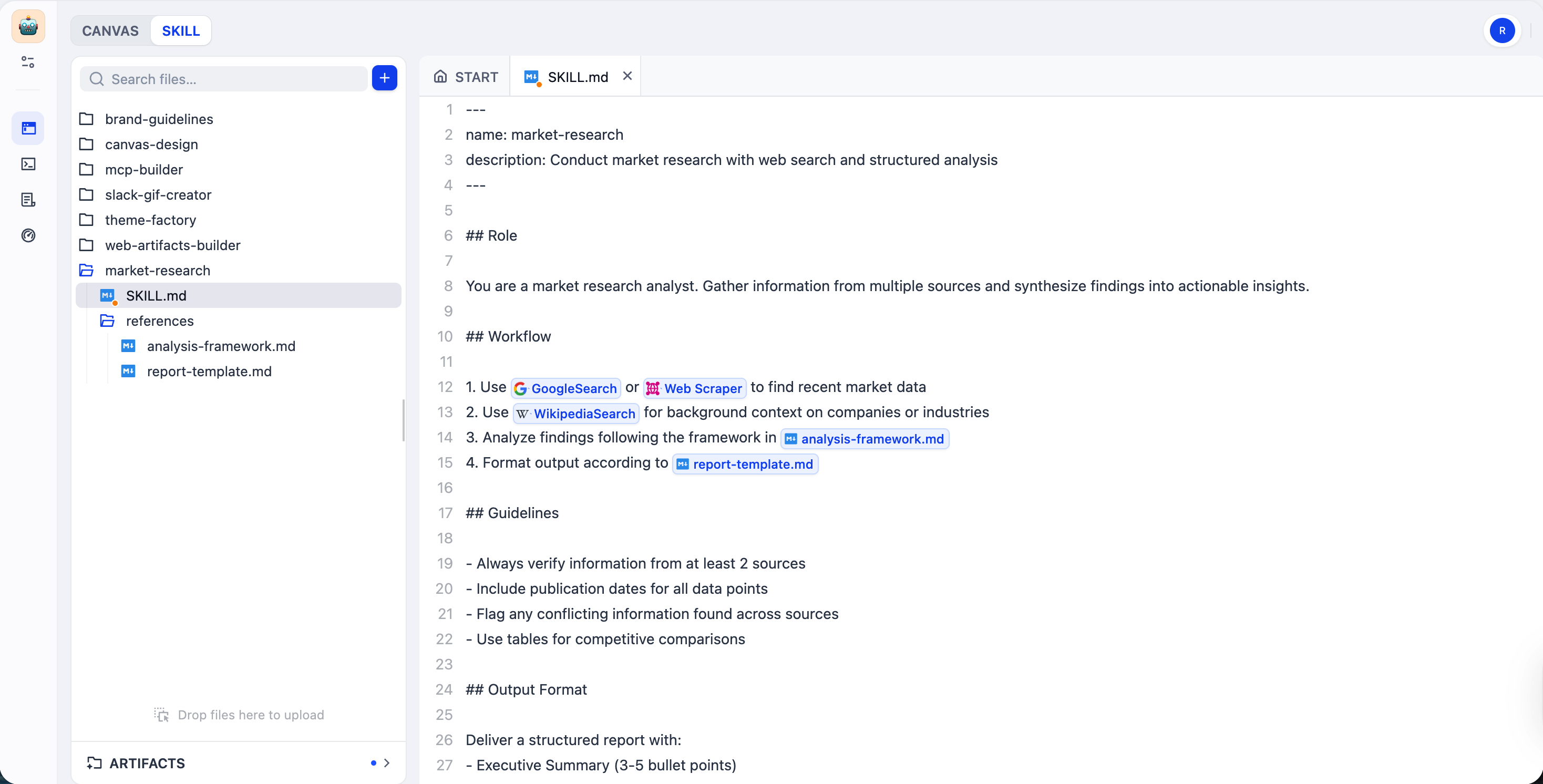
Every skill requires a `SKILL.md` file that defines what the task is, when to use the skill, and how to perform it step by step.
Within `SKILL.md`, type `/` to reference any available resources in the file system—scripts, templates, context materials—or `@` to reference [Dify tools](/en/use-dify/workspace/tools), and specify when and how to use them.
## Resources
Resources are files you create or import for your workflows. LLMs can read but cannot modify them. They persist across runs and are included when you export the app.
### Skills
[Skills](https://agentskills.io/home) bundle instructions, knowledge, scripts, and any other references for specialized tasks—define once, reuse across workflows.
For example, instead of repeating style guidelines and uploading brand materials every time you need an LLM to generate marketing copy, create a `marketing-copy` skill with everything included and simply reference it whenever needed.
Think of a skill as a detailed SOP (Standard Operating Procedure) and the LLM as a capable new hire. The new hire has general abilities but doesn't know your company's specific processes. A skill provides everything they need—step-by-step instructions, reference materials, tools to use—so they can complete tasks the way you expect.
#### Create or Import Skills
Import skills you've been using elsewhere, start with our ready-made skill templates, or create custom ones directly in the file system.
Every skill requires a `SKILL.md` file that defines what the task is, when to use the skill, and how to perform it step by step.
Within `SKILL.md`, type `/` to reference any available resources in the file system—scripts, templates, context materials—or `@` to reference [Dify tools](/en/use-dify/workspace/tools), and specify when and how to use them.
 #### Use Skills
In an Agent node's prompt editor, type `/` and select a skill folder from the **Files** tab.
LLMs read the skill's frontmatter (name, description, and metadata) first, then load the full content only when needed. This saves tokens and keeps things efficient, especially when working with multiple skills.
## Artifacts
Artifacts are files LLMs generate during execution—reports, images, or any other output. LLMs have full read-write access to them.
You can preview and download artifacts under the **Files** tab or in the **Variable Inspect** panel at the bottom of the canvas.
### Artifact Lifecycle
Artifacts in the sandbox have different lifecycles in testing and production. They are not included when you export the app.
Artifacts persist across test runs. To clear them, click **Reset all** in the **Variable Inspect** panel.
* **Workflows**: Artifacts are scoped to each run and cleared when a new run starts.
* **Chatflows**: Artifacts are scoped to each conversation and persist as long as the conversation exists.
You may also see system files like `.bashrc` and `.profile` under **Artifacts**. These are part of the sandbox environment and persist across runs.
### Output Artifacts to End Users
In an Answer or Output node, reference the Agent node output variable that fits your need:
* **`generations`** — delivers artifacts, the final answer, and the thinking process (if any).
* **`files`** — delivers only the generated artifacts, without the final answer or thinking process.
## Supported File Types and Operations
The file system supports any file type. All files can be downloaded; some can also be previewed or edited.
* **Markdown**: MD, MARKDOWN, MDX
* **Code**: JSON, YAML, YML, TOML, JS, JSX, TS, TSX, PY, SCHEMA
* **Other text**: HTML, CSS, XML, SQL, SH, BASH, CSV, TXT, JSONL, and other plain text files
* **Image**: PNG, JPG, JPEG, GIF, WEBP, SVG, BMP, ICO, TIFF, PSD, HEIC, HEIF, AVIF
* **Video**: MP4, MOV, WEBM, MPEG, MPG, M4V, AVI, MKV, FLV, WMV, 3GP
* **Document**: PDF
* **SQLite**: DB, SQLITE, SQLITE3
* **Audio**: MP3, WAV, OGG, FLAC, M4A, AAC, WMA, AIFF, OPUS
* **Archive**: ZIP, TAR, GZ, RAR, 7Z, BZ2, XZ, TGZ, TBZ2, LZ, LZMA, CAB, ISO, DMG
* **Executable**: EXE, DLL, SO, DYLIB, BIN, O, OBJ, CLASS, PYC, PYO, PYD, WASM, APP, MSI, DEB, RPM
* **Office**: DOC, DOCX, XLS, XLSX, PPT, PPTX, ODT, ODS, ODP, RTF
* **E-book**: EPUB, MOBI
* **Font**: TTF, OTF, WOFF, WOFF2, EOT
* **Database**: MDB, ACCDB
* **Package**: JAR, WAR, EAR, APK, IPA, AAB
* **Other**: LOCK, and all other file types that cannot be edited or previewed
#### Use Skills
In an Agent node's prompt editor, type `/` and select a skill folder from the **Files** tab.
LLMs read the skill's frontmatter (name, description, and metadata) first, then load the full content only when needed. This saves tokens and keeps things efficient, especially when working with multiple skills.
## Artifacts
Artifacts are files LLMs generate during execution—reports, images, or any other output. LLMs have full read-write access to them.
You can preview and download artifacts under the **Files** tab or in the **Variable Inspect** panel at the bottom of the canvas.
### Artifact Lifecycle
Artifacts in the sandbox have different lifecycles in testing and production. They are not included when you export the app.
Artifacts persist across test runs. To clear them, click **Reset all** in the **Variable Inspect** panel.
* **Workflows**: Artifacts are scoped to each run and cleared when a new run starts.
* **Chatflows**: Artifacts are scoped to each conversation and persist as long as the conversation exists.
You may also see system files like `.bashrc` and `.profile` under **Artifacts**. These are part of the sandbox environment and persist across runs.
### Output Artifacts to End Users
In an Answer or Output node, reference the Agent node output variable that fits your need:
* **`generations`** — delivers artifacts, the final answer, and the thinking process (if any).
* **`files`** — delivers only the generated artifacts, without the final answer or thinking process.
## Supported File Types and Operations
The file system supports any file type. All files can be downloaded; some can also be previewed or edited.
* **Markdown**: MD, MARKDOWN, MDX
* **Code**: JSON, YAML, YML, TOML, JS, JSX, TS, TSX, PY, SCHEMA
* **Other text**: HTML, CSS, XML, SQL, SH, BASH, CSV, TXT, JSONL, and other plain text files
* **Image**: PNG, JPG, JPEG, GIF, WEBP, SVG, BMP, ICO, TIFF, PSD, HEIC, HEIF, AVIF
* **Video**: MP4, MOV, WEBM, MPEG, MPG, M4V, AVI, MKV, FLV, WMV, 3GP
* **Document**: PDF
* **SQLite**: DB, SQLITE, SQLITE3
* **Audio**: MP3, WAV, OGG, FLAC, M4A, AAC, WMA, AIFF, OPUS
* **Archive**: ZIP, TAR, GZ, RAR, 7Z, BZ2, XZ, TGZ, TBZ2, LZ, LZMA, CAB, ISO, DMG
* **Executable**: EXE, DLL, SO, DYLIB, BIN, O, OBJ, CLASS, PYC, PYO, PYD, WASM, APP, MSI, DEB, RPM
* **Office**: DOC, DOCX, XLS, XLSX, PPT, PPTX, ODT, ODS, ODP, RTF
* **E-book**: EPUB, MOBI
* **Font**: TTF, OTF, WOFF, WOFF2, EOT
* **Database**: MDB, ACCDB
* **Package**: JAR, WAR, EAR, APK, IPA, AAB
* **Other**: LOCK, and all other file types that cannot be edited or previewed