> ## Documentation Index
> Fetch the complete documentation index at: https://dify-6c0370d8-add-new-agent.mintlify.site/llms.txt
> Use this file to discover all available pages before exploring further.
# Additional Features
Add features to make your apps more useful. Click **Features** in the top right to add functionality.
## Workflow apps
File upload through Features is deprecated for Workflow apps. Use [file variables on the User Input node](/en/use-dify/nodes/user-input) instead.
Workflow apps only support **Image Upload** via Features:
**How to set it up:**
1. Enable Image Upload in Features
2. Add LLM node with vision
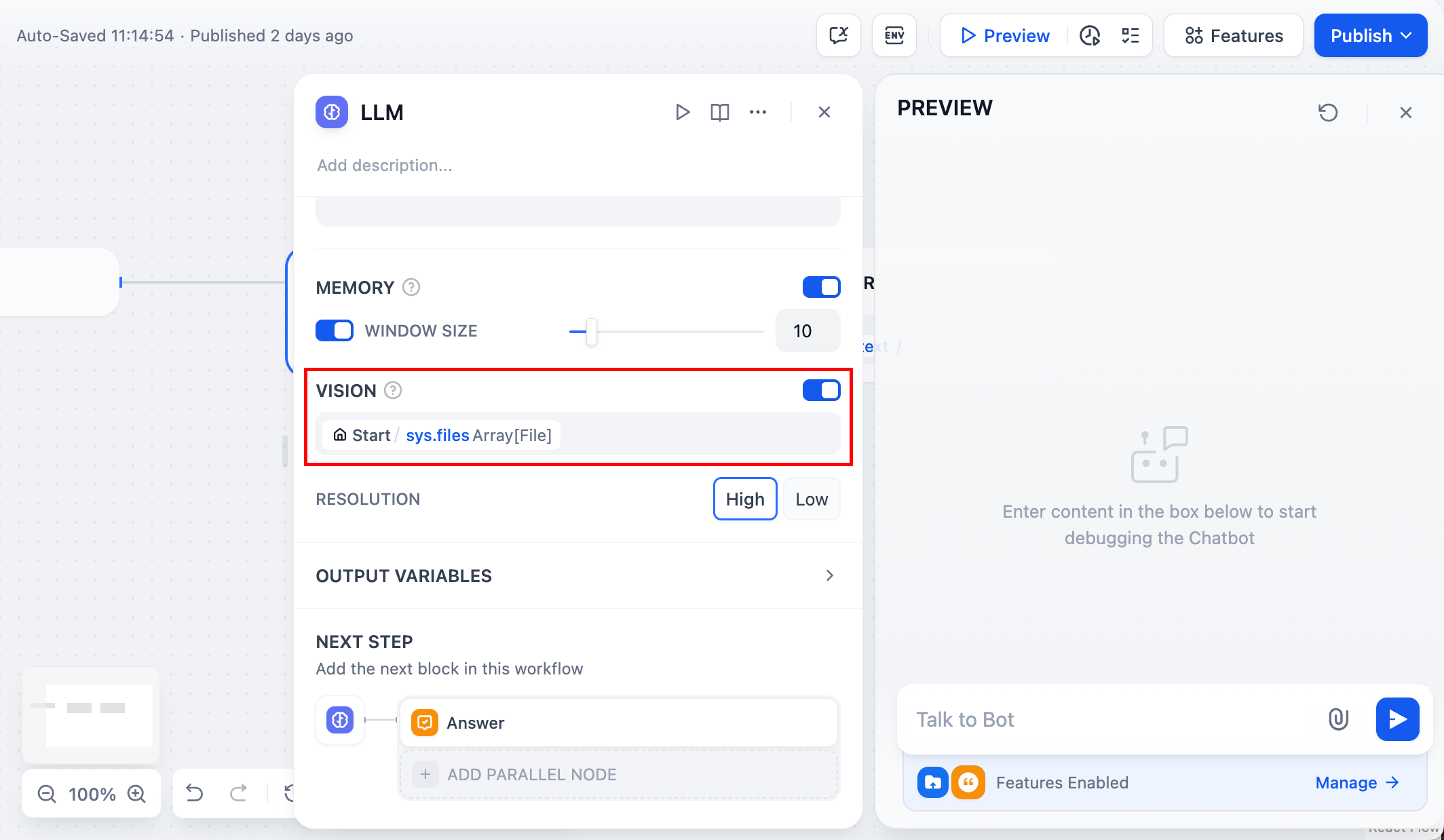
3. Enable VISION and select `sys.files` variable
4. Connect to End node
## Chatflow apps
Chatflow apps get more features:
* **Conversation Opener** - AI says hello first
* **Follow-up** - Suggests next questions after responses
* **Text-to-Speech** - Reads responses out loud (needs TTS setup in Model Providers)
* **File Upload** - Users can upload files
* **Citation** - Shows sources when using Knowledge Retrieval
* **Content Moderation** - Filters inappropriate content
## File upload
Most features work automatically once enabled. File upload needs more setup.
**For users**: Click the paperclip icon to upload files
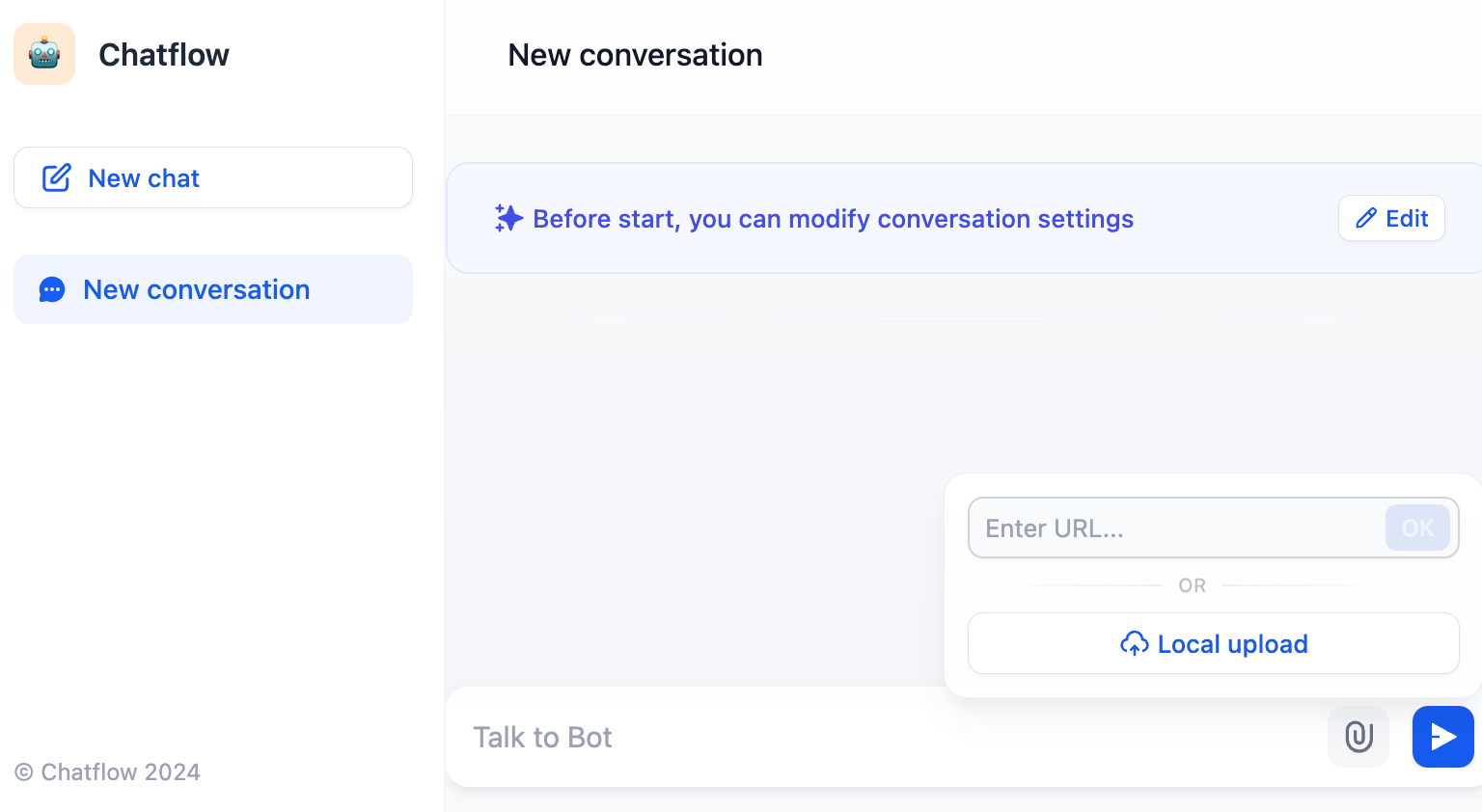
**For developers**: Files show up in the `sys.files` variable. Different file types need different handling:
### Documents
LLMs can't read files directly. Use Document Extractor first.
1. Enable "Documents" in file types
2. Add Document Extractor node with `sys.files` as input
3. Add LLM node using document extractor output
4. Add Answer node with LLM output
This doesn't remember files between conversations. Users need to re-upload each time. For persistent files, use [file variables on the User Input node](/en/use-dify/nodes/user-input) instead.
### Images
Some LLMs can analyze images directly.
1. Enable "Images" in file types
2. Add LLM node with VISION enabled
3. Select `sys.files` variable
4. Add Answer node with LLM output
### Mixed file types
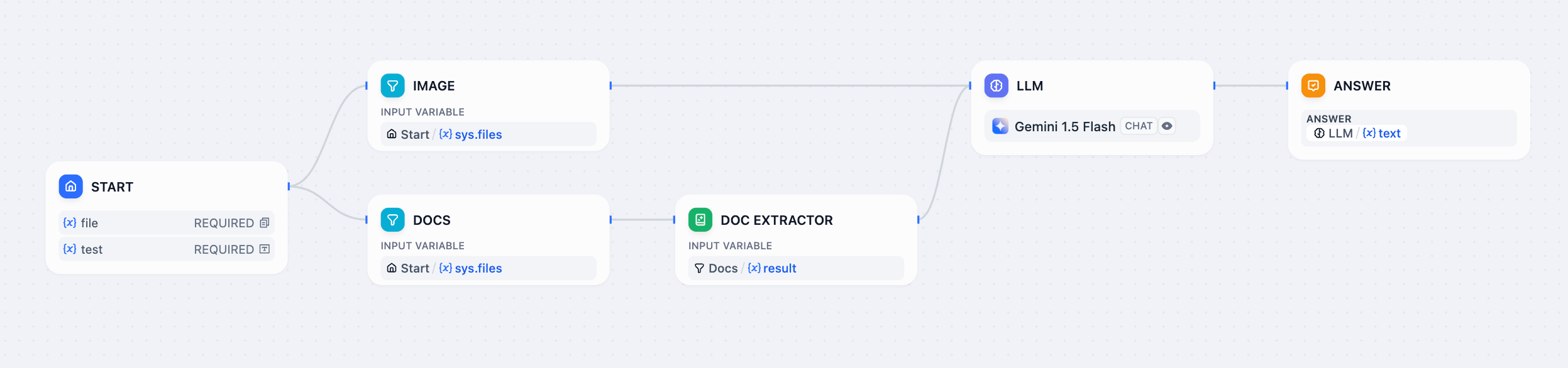
Handle both documents and images:
1. Enable both "Images" and "Documents"
2. Add two List Operation nodes to filter file types
3. Send images to LLM with vision
4. Send documents to Document Extractor
5. Combine results in Answer node
### Audio and video
LLMs can't process these directly. You'll need to [install](https://marketplace.dify.ai/?category=tool) use tools for audio/video processing.
## Limits
* Max 15MB per file
* Max 10 files at once